Ollama vs LM Studio vs Jan: Best Local LLM Tool for 2026
A solopreneur's field guide to running AI models on your own machine, no API bills, no data leaks
AI assisted the draft; Qasim Hammad tested, edited, and fact-checked it. See our AI disclosure.

Your OpenAI bill just hit $200 for the month and half of those tokens went to internal drafts you never want on a third-party server. Switch to a local LLM and that bill drops to $0 while your data stays on your own machine.
The symptom is familiar: you are automating with n8n or Make.com, calling Claude or GPT-4o for every node, and watching costs compound with every new workflow. Or a client asks where their data goes and you have no clean answer.
Three tools make local inference practical for a solo operator in 2026: Ollama, LM Studio, and Jan. They all run open-source models like Llama 3, Mistral, and Phi-3 on your hardware. The right one depends on whether you need a headless API, a testing GUI, or an air-gapped privacy layer.
 All three tools run open-source models locally, no cloud API required.
Which Local LLM Tool Is Right for You?
Ollama wins for automation builders, LM Studio wins for model explorers, and Jan wins for privacy-first operators. The decision is mostly about how the tool fits into your existing stack, not raw model performance, all three load the same GGUF model files and produce comparable output quality.
Here is the full comparison at a glance:
| Feature | Ollama | LM Studio | Jan |
|---|---|---|---|
| Interface | CLI + REST API | GUI desktop app | GUI desktop app |
| API compatibility | OpenAI-compatible (port 11434) | OpenAI-compatible (port 1234) | OpenAI-compatible (port 1337) |
| Model discovery | ollama pull <model> command | Built-in model browser | Built-in model hub |
| Install time | ~2 minutes | ~5 minutes | ~5 minutes |
| Telemetry | Minimal, opt-out available | Minimal, opt-out available | None by default |
| OS support | macOS, Linux, Windows | macOS, Windows, Linux (beta) | macOS, Windows, Linux |
| Best for | n8n / Make.com automation | Testing & comparing models | Offline / privacy workflows |
| Price | Free | Free | Free |
All three are free. Your only cost is electricity and the GPU you already own.
Ollama: The Automation Builder's Best Friend
Ollama is the fastest path from zero to a working local AI API. Install it with a single command, pull a model, and you have an OpenAI-compatible endpoint at http://localhost:11434 ready for any automation tool that can make an HTTP request. Wiring Ollama into an n8n workflow for the first time takes under 8 minutes.
The Ollama model library currently lists over 100 models. Pull Llama 3.1 8B with:
ollama pull llama3.1
Then in n8n, create an OpenAI API credential, set the Base URL to http://localhost:11434/v1, and enter any string as the API key (Ollama ignores it locally). Every AI Agent node in n8n treats your local model exactly like GPT-4o from that point forward.
Connecting Ollama to n8n in 4 Steps
- Install Ollama from ollama.com and confirm it is running with
ollama listin your terminal. - In n8n, go to Credentials → New → OpenAI API and set the Base URL to
http://host.docker.internal:11434/v1if n8n runs in Docker, orhttp://localhost:11434/v1if it runs natively. - Add an AI Agent or HTTP Request node. Select your Ollama credential.
- Set the Model field to match your pulled model name exactly, for example,
llama3.1ormistral.
Ollama supports concurrent requests and model hot-swapping, which matters when you run multiple workflows at once. Per the Ollama GitHub repository, it can keep multiple models loaded simultaneously depending on available VRAM.
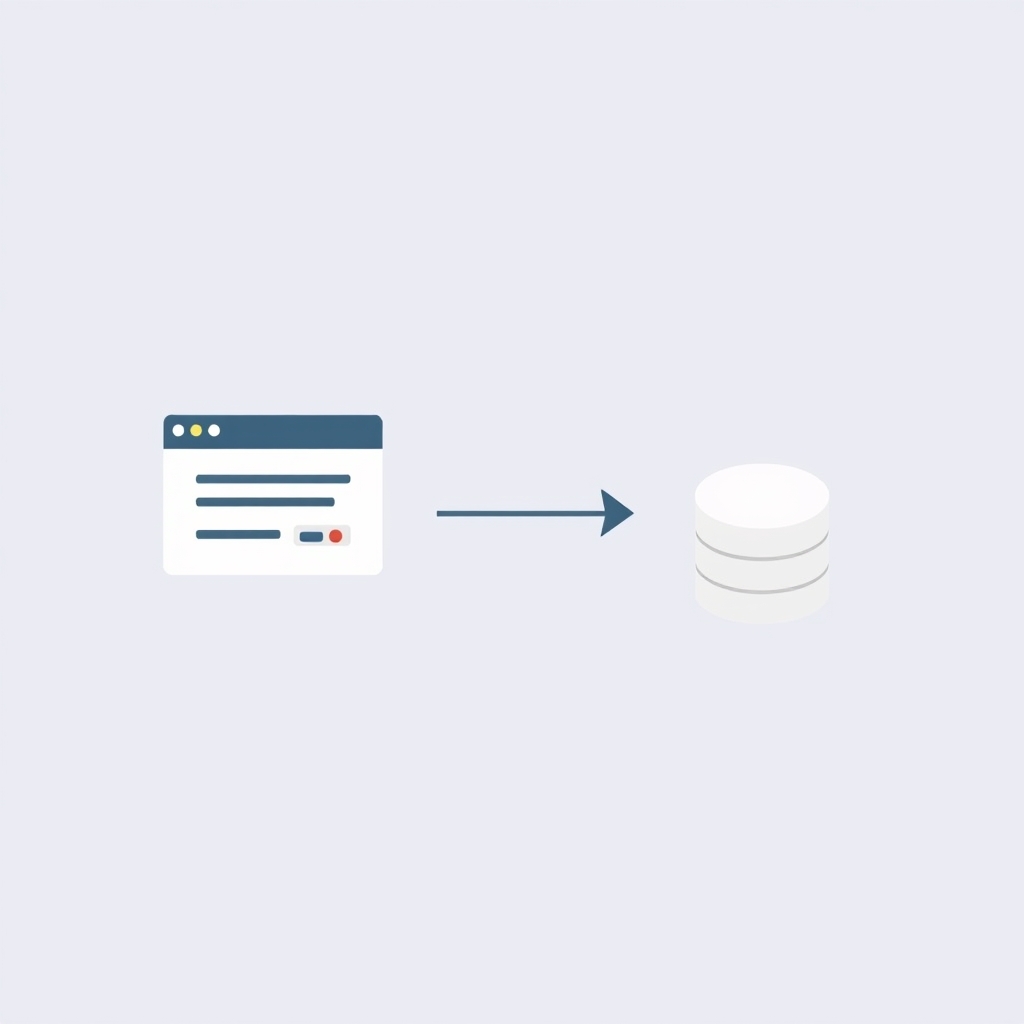 Ollama's REST API plugs directly into n8n as an OpenAI-compatible credential.
LM Studio: Test Before You Automate
LM Studio is the right tool when a client needs a specific capability and you want to audit 3-4 models before picking one for a production workflow. Its GUI lets you download models from Hugging Face, chat with them side by side, and monitor token throughput in real time. No terminal required.
The built-in Local Server tab starts an OpenAI-compatible endpoint on port 1234 with one click. Make.com or Zapier can then hit http://localhost:1234/v1/chat/completions using a standard HTTP module. LM Studio also shows tokens-per-second live, so you know immediately whether a model is fast enough for a time-sensitive automation.
What LM Studio Does Better Than the Others
- Model browser: search and download GGUF quantizations directly inside the app without hunting Hugging Face manually.
- Side-by-side chat: run two models against the same prompt at once to compare quality before committing.
- System prompt editor: save and reuse system prompts without writing any code.
- Hardware stats: GPU/CPU load and VRAM usage visible at a glance.
LM Studio's release notes show the app added multi-model server support in 2024, letting you load two models at different ports. For a solo operator running a content pipeline and a customer-support draft workflow at the same time, that feature alone justifies using LM Studio for the testing phase.
One limitation: LM Studio is heavier on RAM than Ollama for headless use. If your machine is also running n8n, Docker, and a browser, you may feel the squeeze with models above 13B parameters.
Jan: When Privacy Is Non-Negotiable
Jan is the right choice when you are processing genuinely sensitive data, medical, legal, financial, and need to guarantee that nothing leaves your hardware. Per the Jan documentation, the application runs fully offline, stores all conversations in local JSON files, and sends zero telemetry by default.
Jan's interface mirrors a simplified ChatGPT. Pick a model from its built-in hub, chat, and optionally enable its API server on port 1337. The API is OpenAI-compatible, so wiring it into n8n works the same way as Ollama.
What Jan trades away is developer ergonomics. There is no CLI, the model library is smaller than Ollama's 100+ options, and hot-reloading models mid-workflow is less reliable. For a solopreneur who needs to tell a healthcare or legal client "your data never touches the internet," Jan is the only one of the three that ships that guarantee out of the box.
 Jan stores all conversations as local JSON, nothing leaves your hardware.
Hardware Reality Check
Before committing to any of these tools, know what your machine can actually run. A quantized 8B model (Q4_K_M) needs roughly 5-6 GB of VRAM. A 13B model needs 8-10 GB. These figures come from the GGUF quantization guide on Hugging Face.
On Apple Silicon, all three tools use Metal acceleration and run well on 16 GB unified memory. On Windows/Linux, an NVIDIA RTX 3060 12 GB handles 8B, 13B models comfortably. Below 8 GB VRAM, stick to 7B models or use CPU offloading, which drops throughput by 60-70%.
| Model Size | Min VRAM (Q4) | Approx Speed (RTX 3060) |
|---|---|---|
| 7B / 8B | 5-6 GB | 50-80 tok/s |
| 13B | 8-10 GB | 25-40 tok/s |
| 34B | 20-24 GB | 10-15 tok/s |
| 70B | 40+ GB | Requires multi-GPU |
Speed figures are approximate and vary by quantization level, prompt length, and backend settings.
How Solopreneurs Get This Wrong
The most common mistake is pulling the largest model your hardware can technically load, then wondering why your n8n automation times out. A 30-second inference call that freezes your laptop kills any workflow that needs sub-5-second responses.
Start with a 7B or 8B model at Q4_K_M quantization, measure actual tokens-per-second for your typical prompt length, and only upgrade model size if quality is genuinely insufficient. Llama 3.1 8B handles 80% of solo-operator tasks, email drafts, data extraction, classification, without needing anything larger.
A second mistake is forgetting port conflicts. Ollama uses 11434, LM Studio uses 1234, Jan uses 1337. If you run all three at once (useful for testing), make sure your automation credentials point to the right port. Getting this wrong produces silent failures where n8n connects successfully but calls the wrong model.
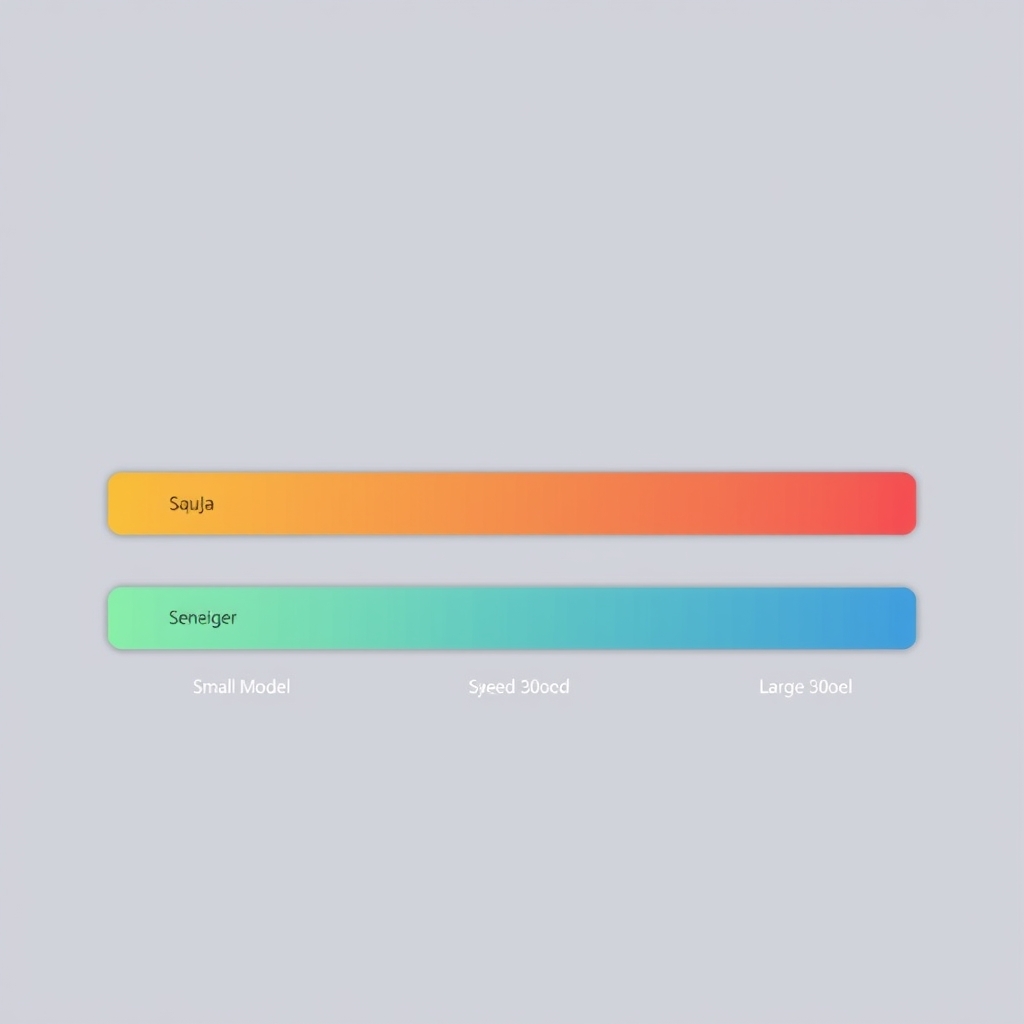 Smaller quantized models run 3-5x faster, critical for automation latency.
Where to Go from Here
If you are already using n8n or Make.com, install Ollama first. It integrates in under 10 minutes and costs nothing to run. Once you have a working local AI node in your automation, use LM Studio to test whether a different model improves output quality before swapping it into the live workflow. If a client or project demands a zero-telemetry guarantee, Jan slots in with the same API shape.
The three tools are not rivals. Most solopreneurs end up running Ollama in production and keeping LM Studio on the side for model evaluation. That combination gives you a fast, scriptable runtime and a visual testing layer, without paying $0.01 per thousand tokens to anyone.
Frequently asked questions
What is the difference between Ollama, LM Studio, and Jan?
Can I connect Ollama to n8n for automation?
Do local LLMs cost anything to run?
Which local LLM tool is best for a solopreneur who is not technical?
Is Jan truly private?
What hardware do I need to run a local LLM?
Can LM Studio connect to automation tools like Zapier or Make.com?
Related reading

Best Free AI IDEs in 2026: Truly Free vs Free-Trial
Most "free AI IDE" lists mix up four completely different things. This guide splits 11 tools into truly free, BYOK, freemium, and trial-only, so you know exactly what you're getting before you build.

How Solopreneurs Use AI to Automate Lead Follow-Up and Client Onboarding
Two hidden time-sinks bookend every solo deal: chasing leads before they say yes, and onboarding clients after. Here's how solopreneurs use AI to automate both ends of the journey, from first inquiry to kickoff call.